
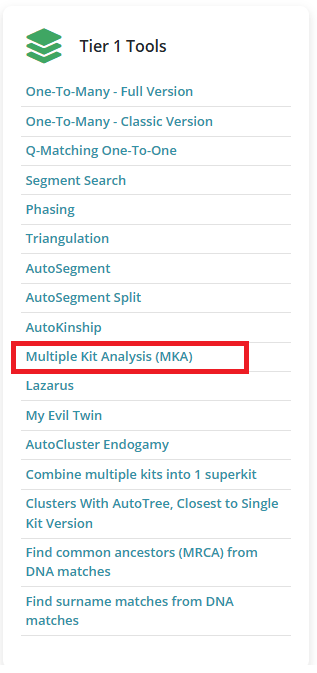
If you have a GEDmatch Tier 1 subscription (1), you’ve probably used the MultiKit Analysis (MKA). This can be accessed from the Tier 1 tool list, or within a tool by selecting the kits and clicking on “Visualization Options.”
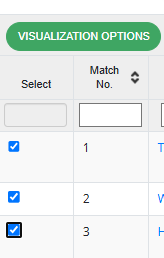
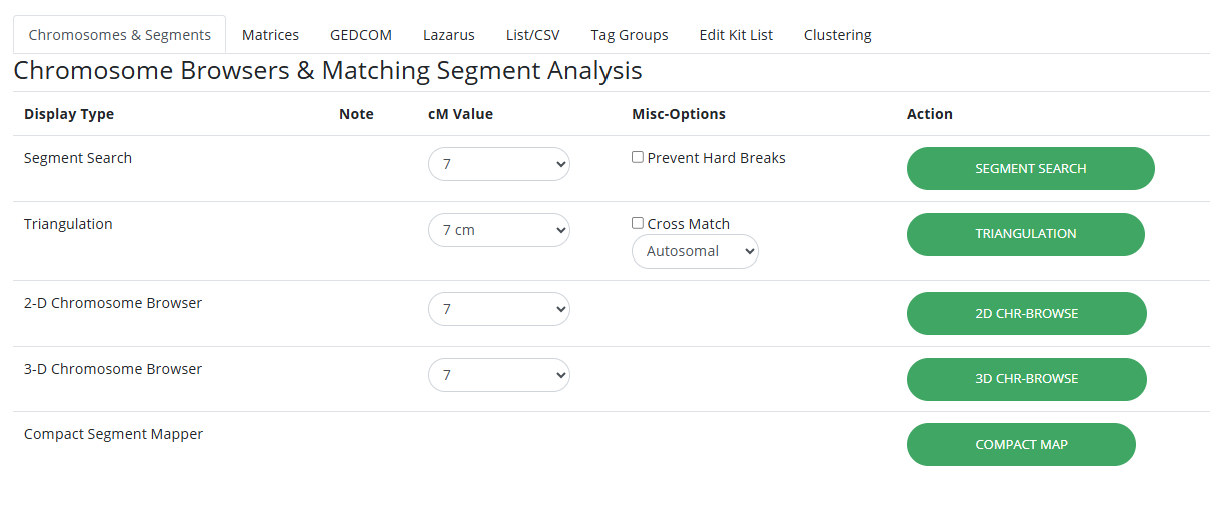
Once you have selected the kits you wanted and clicked “Visualization Options,” you could analyze those kits with many different tools.
If at any point you needed to add or delete kits, you could select “Edit Kit List” and manually add the kits you wanted to use, or delete the kits you didn’t want to use and go back to visualization options to choose the tool you wanted to use.
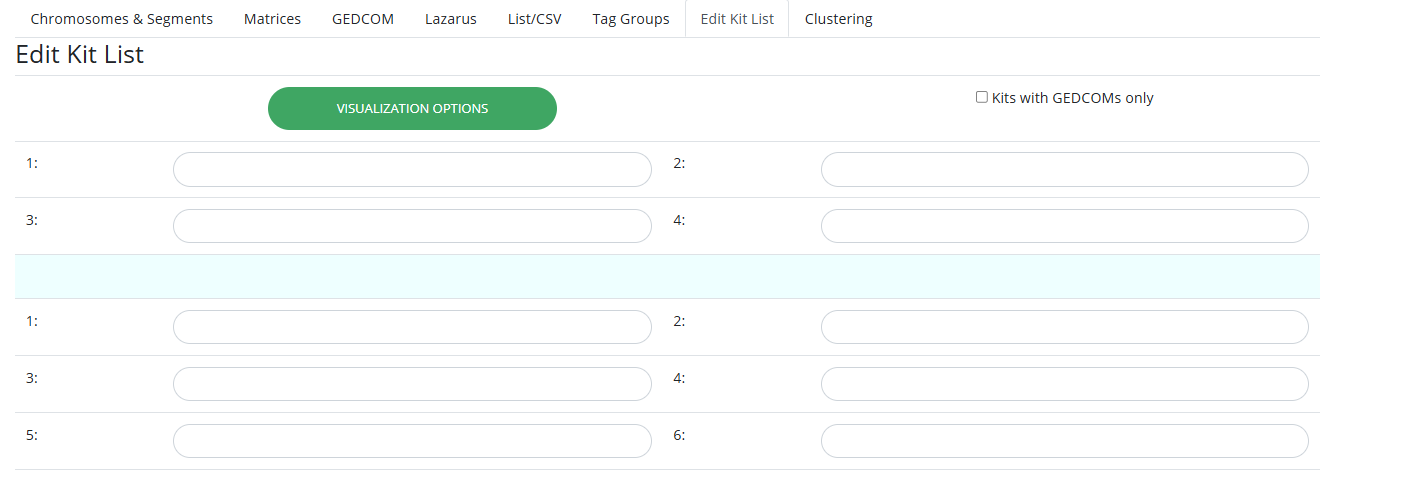
The whole process of adding kits to MKA and editing the kit numbers was bothersome, so I can see why GEDmatch decided to switch things up in the Beta (5). Enter: My Clipboard.
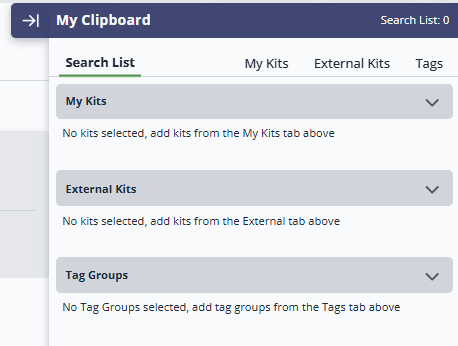
Like MKA, My Clipboard is only available for Tier 1 subscribers. It has 4 components: Search List, My Kits, External Kits and Tags.
Your Search List is the list of kits you are using to run tools. Some tools, like the Matrix tool, require you to have a Search List set up to use it. Note that for the Matrix tool, even if you have more than 100 kits on your Search List, it will only process the first 100.

Other tools, like Segment Search and Triangulation, give you the option of using the Search List from My Clipboard or running the tool with a kit number.

How do you create a Search List? By adding kits from My Kits, External Kits, or Tags.
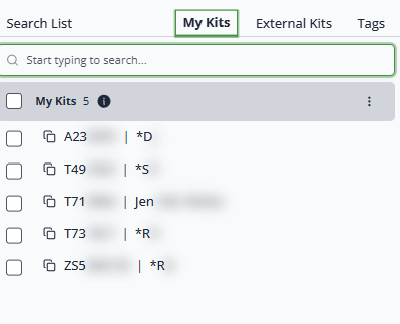
My Kits is pretty self explanatory: it’s a list of all the kits you manage. Select whichever kits you want to appear on your Search List. You can unselect them at any time.
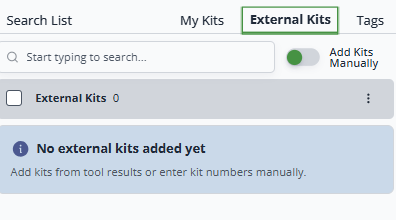
External Kits are kits you do not manage. If you toggle the “add kits manually” button, you can type or paste in a kit number. Given that this is tedious to do for many kits, you can also add kits from different tools such as One to Many Tier 1, In Common With Matches, Triangulation, and Segment Search.
Once you’ve run a tool like One to Many Tier 1, check off as many kits as you’d like and then click on “+ Add to My Clipboard,” and the kits will show up on your list of External Kits. The total number of kits on the Search List is visible in the top right hand corner of My Clipboard.
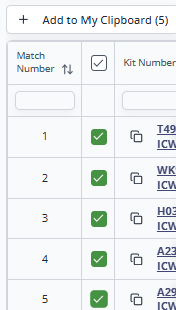
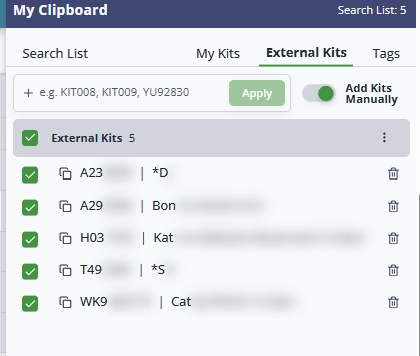
The kits you added to your External Kits list will automatically be part of the Search List. If you don’t want them to be in the Search List, you can use the selection boxes to remove them. At any time, you can toggle one selection box (or use the select button at the top to toggle them all) on your External Kits List to be part of your Search List or to be taken off the Search List. Note that if a selected kit is part of your External Kits and is also a kit in My Kits and/or in one of your Tag Groups, it’s possible for it to show up multiple times on your Search List.
Tag groups is a big enough subject that it needs it own post, so I won’t go into detail about it here. I will just note that it offers another way to easily add kits to your Search List. Once you have your Tag Groups set up, you can add any group all at once by checking that Group’s selection box. You may add more than one Group to your Search List.
Whenever I ran MKA, I often forgot that the first kit listed was the primary kit. For some tools, like the Matrix, it didn’t matter, because all the kits would be compared against all the other kits. However, for tools like Triangulation, the primary kit is the background to which all the other kits are being compared. If kits A, B, and C triangulate with each other, but not with me, and I am the primary kit, their triangulation will not show up, but the triangulation will show up if either A, B, or C is the primary kit.. My Clipboard makes the selection of the primary kit obvious by asking you to specify which kit will be the primary kit.
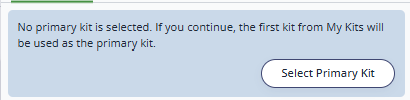
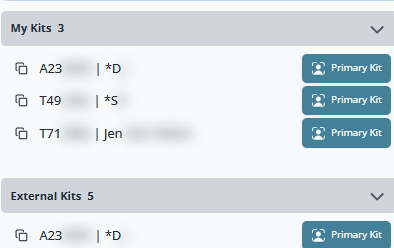
Once you click on “Select Primary Kit” you will see a button with a little person icon that says “Primary Kit.” This can be one of the kits you manage, one of your External Kits, or one of the kits from your Tag Groups. Once selected, the person icon will appear next to that kit. Again, because a kit can be a part of My Kits, External Kits and Tag Groups, the primary kit can show up more than once. You can clear and select a new primary kit by clicking on the 3 dot menu in My Kits, External Kits, or Tags.
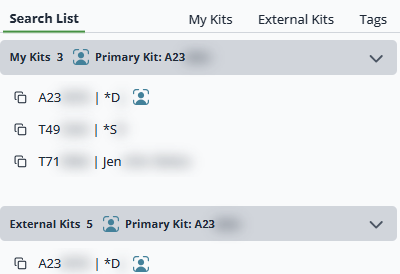
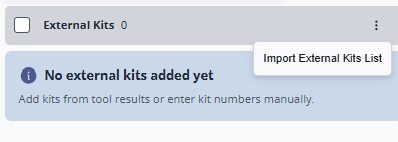
For now, it looks like My Clipboard doesn’t reset from session to session, which should really cut down on what one of my students called “GEDmatch rage” (when your session times out and everything you were working on disappears). For added peace of mind, you can export all the kit numbers in your Search List to CSV by using the Export button at the very bottom of the Search List. Then, you can import that CSV back into My Clipboard using the 3 dots on the External Kits tab.

I really like My Clipboard! It’s a huge step up from classic MKA. I’ve posted a few bug reports and feature ideas in the GEDmatch Forums (15), and it’s genuinely exciting to watch the development team listen and respond. If you’ve been hesitant to try the Beta, now is the time to dive in, test out My Clipboard, and share your feedback!
- GEDmatch, 2026 (https://app.gedmatch.com/ : accessed 1 September 2026).
- Jennifer Wiebe, digital photo, MultiKit Analysis, 1 September 2026, author’s files.
- Jennifer Wiebe, digital photo, Visualization Options , 1 September 2026, author’s files.
- Jennifer Wiebe, digital photo, Edit Kit List, 1 September 2026, author’s files.
- GEDmatch Beta, 2026 (https://beta.gedmatch.com/: accessed 1 September 2026).
- Jennifer Wiebe, digital photo, My Clipboard, 1 September 2026, author’s files.
- Jennifer Wiebe, digital photo, Before you run a matrix, 1 September 2026, author’s files
- Jennifer Wiebe, digital photo, My Clipboard toggle, 1 September 2026, author’s files.
- Jennifer Wiebe, digital photo, My Kits, 1 September 2026, author’s files.
- Jennifer Wiebe, digital photo, External Kits, 1 September 2026, author’s files.
- Jennifer Wiebe, digital photo, Adding External Kits to My Clipboard, 1 September 2026, author’s files.
- Jennifer Wiebe, digital photo, Select Primary Kit, 1 September 2026, author’s files.
- Jennifer Wiebe, digital photo, Primary Kit Select, 1 September 2026, author’s files.
- Jennifer Wiebe, digital photo, Export – Import, 1 September 2026, author’s files.
- “Beta Interface & Feedback,” GEDmatch Forums, 2026 (https://forums.gedmatch.com/c/beta-interface-feedback/56/ : accessed 1 September 2026).
 Jennealogie
Leave a comment