
The all-new GEDmatch Beta (1) is finally here, and it brings some big changes to how we navigate our DNA data at GEDmatch! Before starting on the edits to my blog posts with the changes to the interface for the individual tools, I thought I would do a broad overview to show how the platform is organized.
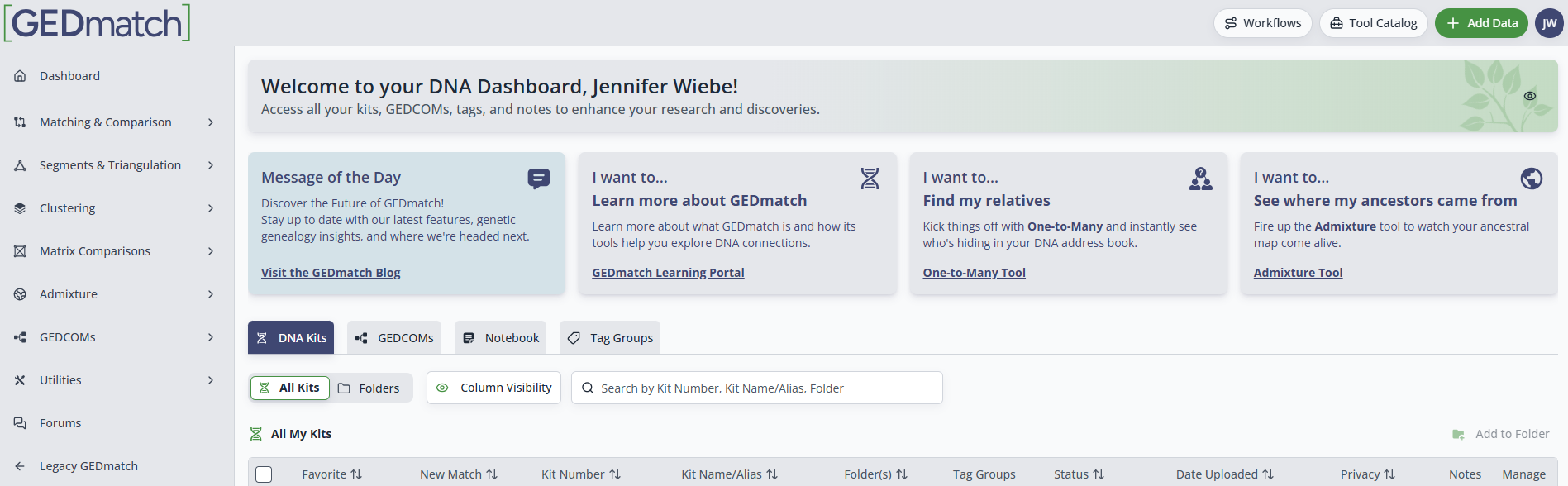
Much like legacy GEDmatch, you have a dashboard that has the list of all the kits you manage. I love that they put a little copy button next to each kit so you can easily copy the kit number. Just one example of how much thought was put into this revamp!
You can click on “manage” to see the information for each kit, and edit details like biological sex, age, whether the person is adopted or not, etc. Keep in mind that some of this information may be public. Here you can also transfer ownership of the kit or delete it.
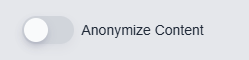
My favourite new thing is the “Anonymize Content” toggle at the bottom of the page. As someone who frequently takes screenshots for blogging and teaching, not having to manually block out identifying details like names and kit numbers is an invaluable asset!
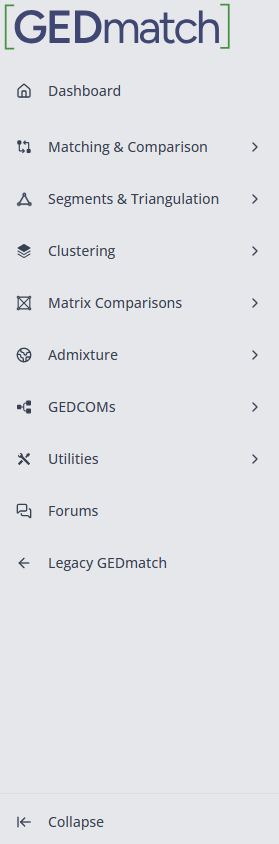
The left sidebar is where all your tools live. I like how the tools are now divided into different collapsible sections. The side bar itself can also be collapsed!
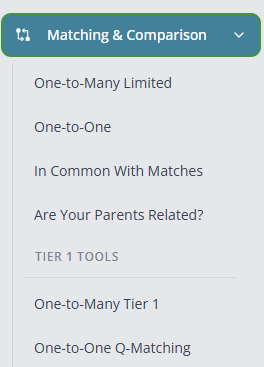
Within each section, the tools are divided into standard tools that are free for all users, and Tier 1 tools that are grouped separately for paid subscribers.
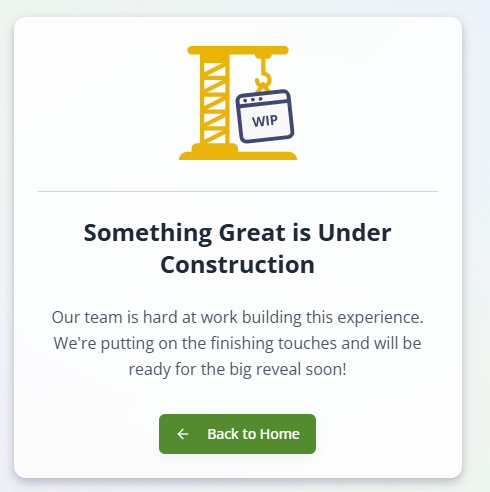
Not all the tools are currently available, but they will eventually be phased in.

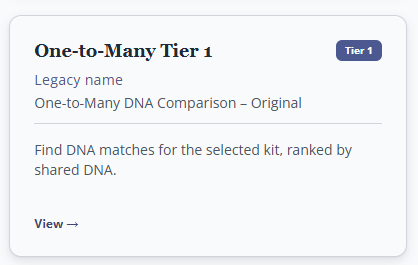
There is also a tool catalog in the top right. There you’ll see all the currently available tools, and if the name has changed, that will be noted underneath.
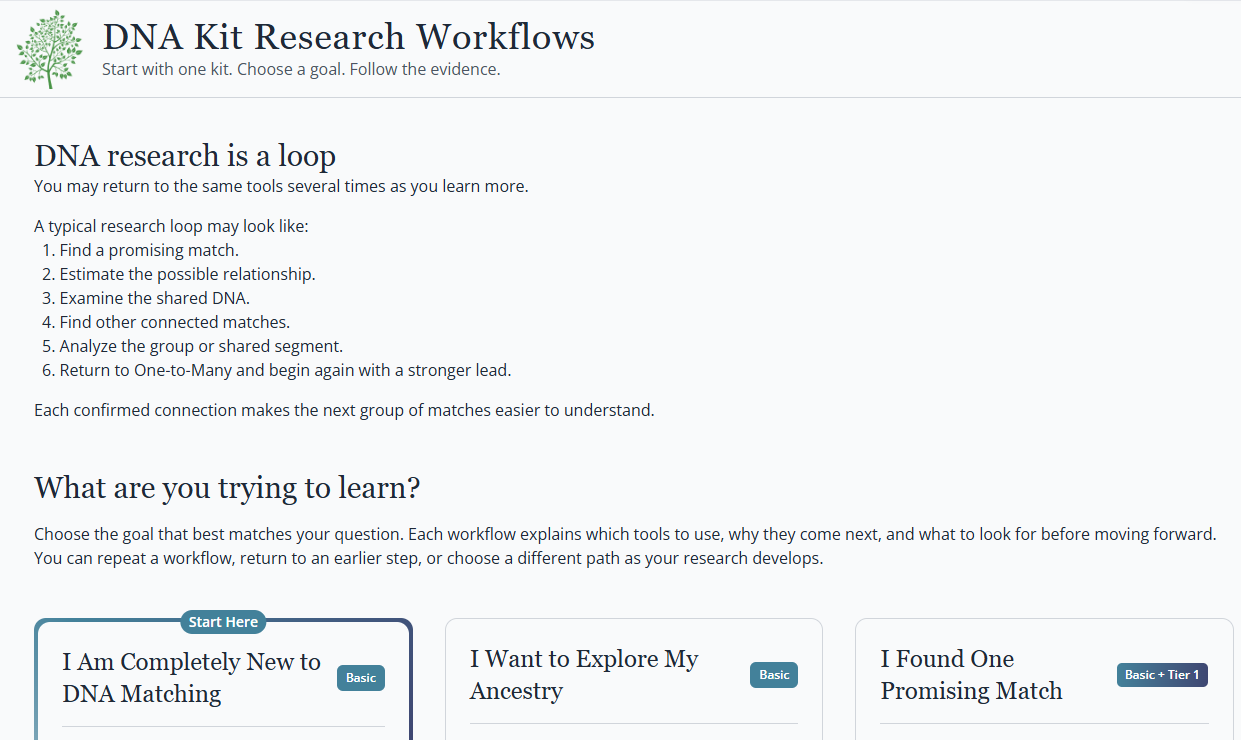
The top right corner also has a section for workflows.

There are many different uses for DNA, and this page is full of different scenarios for those different uses. This will make it easier to understand the tools, and the order of tool use that GEDmatch thinks will be helpful for each scenario.
Also in the top right corner is +Add Data

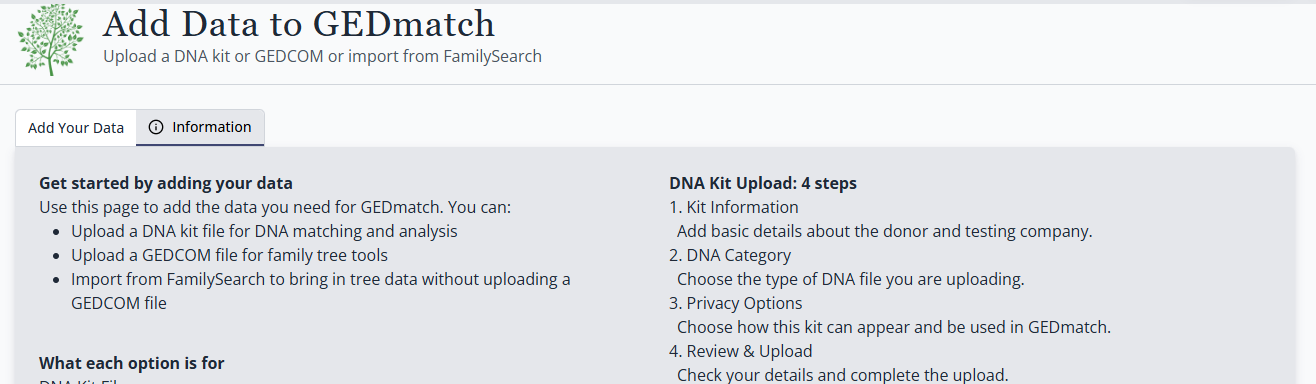
This allows you to upload a DNA Kit file, a GEDCOM file if you want to upload a family tree, or even import a family tree from FamilySearch!
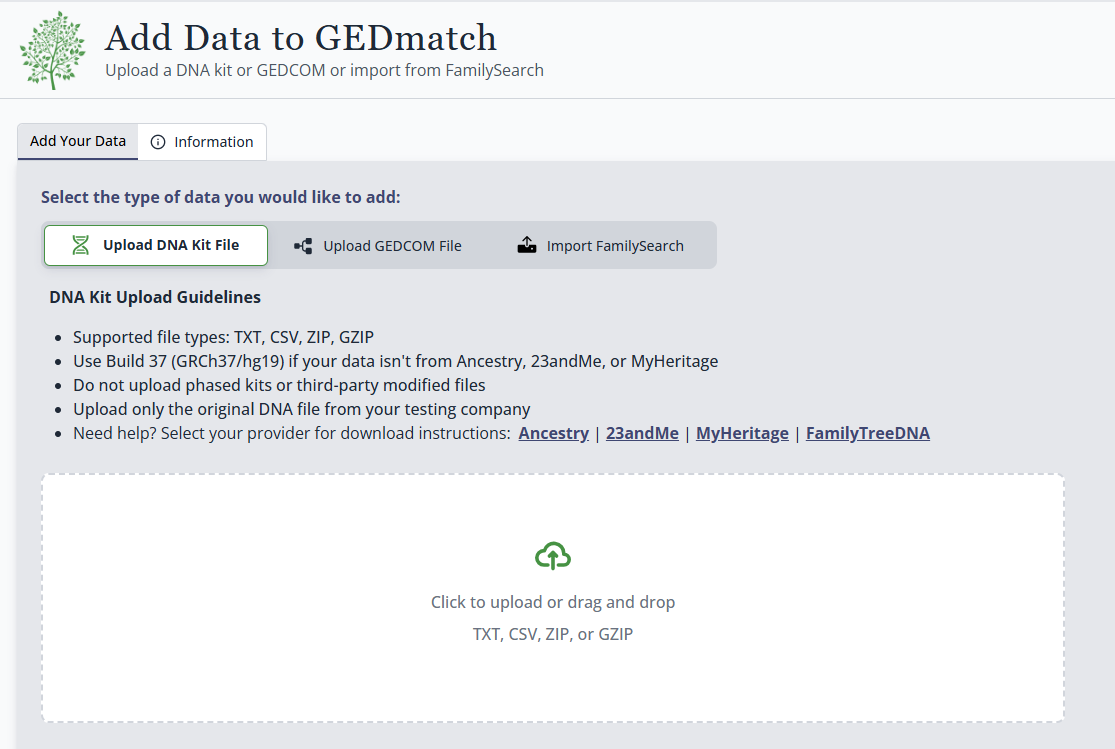
I also love the little (i) information button all over the site. Here it tells you more about uploading DNA and family trees, but for each tool it will tell you about what the tool does, why you would want to use it, everything you need to know to understand the results, and some tips for using it, as well as any features that Tier 1 subscribers have.
Click on your initials allows you to do three things, one of which is logging out.

The second option allows you to view and edit your profile information. I like that they put things like “my age range” and “adopted,” which are always helpful to someone looking at mystery matches. You can also specify your experience level, whether you are a genealogist, available for work, as well as add links to social media. You can even add a profile picture!

The final option opens your settings.

Here you can select how often you want to get new match notifications, and at what threshold you want to be notified. You can also change the account email, manage your Multi-Factor Authentication (MFA) settings and your Tier 1 membership, as well as delete your account.

Besides going into detail about each tool, the only other thing I haven’t discussed is “My Clipboard.” This is a major productivity upgrade that deserves its own post!
It’s clear that a lot of effort went into building this new site! It’s not just a visual makeover, but an incredibly thoughtful redesign. I’m looking forward to exploring each tool and making a contribution to the feedback needed to move it into its final, permanent layout.
- GEDmatch Beta, 2026 (https://beta.gedmatch.com/: accessed 20 August 2026).
- Jennifer Wiebe, digital photo, GEDmatch dashboard, 20 August 2026, author’s files.
- Jennifer Wiebe, digital photo, Anonymize Content Toggle, 20 August 2026, author’s files.
- Jennifer Wiebe, digital photo, Tool Sidebar , 20 August 2026, author’s files.
- Jennifer Wiebe, digital photo, Tool Sidebar Section, 20 August 2026, author’s files.
- Jennifer Wiebe, digital photo, Under Construction, 20 August 2026, author’s files.
- Jennifer Wiebe, digital photo, Tool Catalog , 20 August 2026, author’s files.
- Jennifer Wiebe, digital photo, Tool Catalog detail, 20 August 2026, author’s files.
- Jennifer Wiebe, digital photo, Workflow button, 20 August 2026, author’s files.
- Jennifer Wiebe, digital photo, Workflow Page, 20 August 2026, author’s files.
- Jennifer Wiebe, digital photo, Add Data button, 20 August 2026, author’s files.
- Jennifer Wiebe, digital photo, Add data page, 20 August 2026, author’s files.
- Jennifer Wiebe, digital photo, Add data information page, 20 August 2026, author’s files.
- Jennifer Wiebe, digital photo, Initials button, 20 August 2026, author’s files.
- Jennifer Wiebe, digital photo, Profile Information page, 20 August 2026, author’s files.
- Jennifer Wiebe, digital photo, General Settings page, 20 August 2026, author’s files.
- Jennifer Wiebe, digital photo, My Clipboard button, 20 August 2026, author’s files.


Leave a Reply