
I’ve talked about Scapple (1) and LucidChart (2) before, and now I’m going to talk about yet another charting tool, Draw.io (3). It looks a lot like LucidChart, but it’s free. You can connect it to your Google Drive account, and although I haven’t tried collaborating with anyone, given how easy it is to collaborate with Google Drive, I imagine it’s fairly simple. It’s a web-based app, which means you use it in your browser, whether on mobile or desktop.
To start, drag a shape to the chart. Unlike some drawing programs, where you select the shape and draw it, here you just grab it and pull it over to the chart, then you can adjust the size. This includes lines.
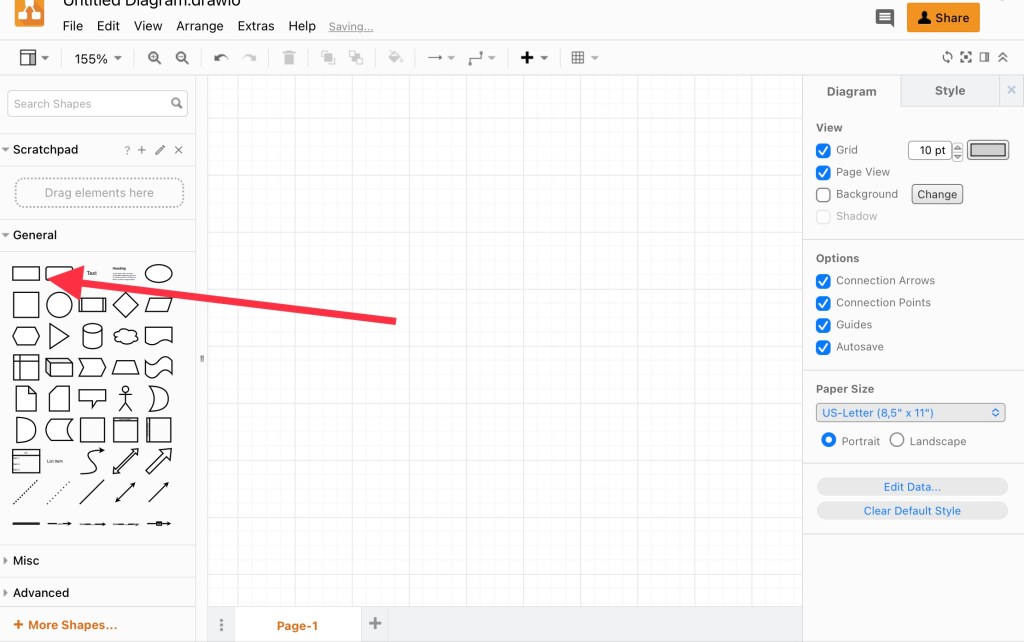
If the toolbar (circled in red) is not open, click on it to access other options, such as fill and line. One thing I like is the blue arrows around the shape:

If you click on a blue arrow, the shape menu comes up:

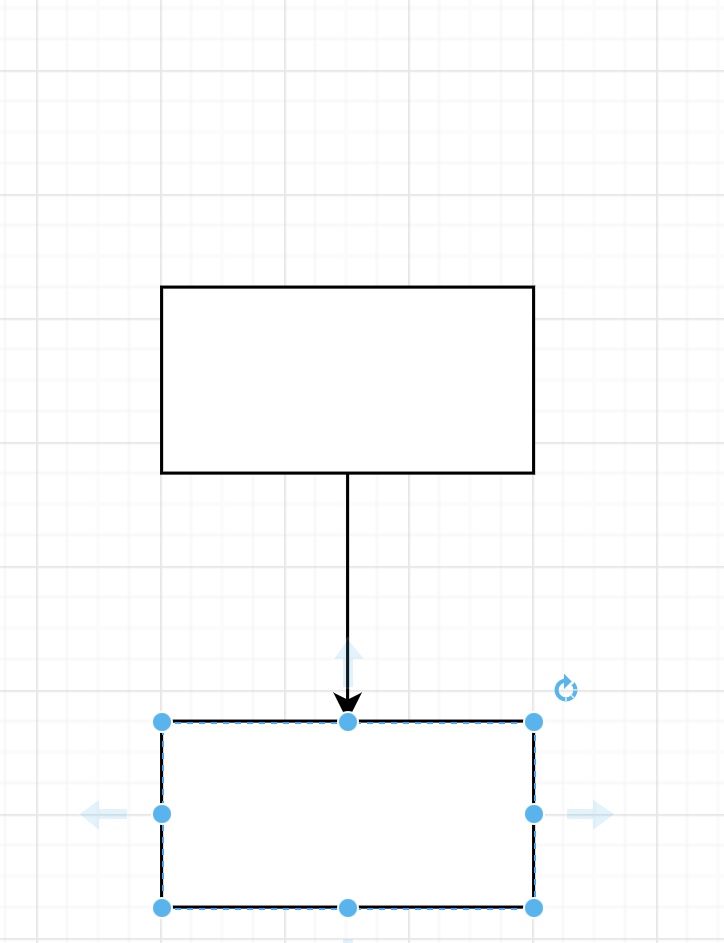
If you click on a shape, it will automatically create that shape, attached to the first shape with a line:
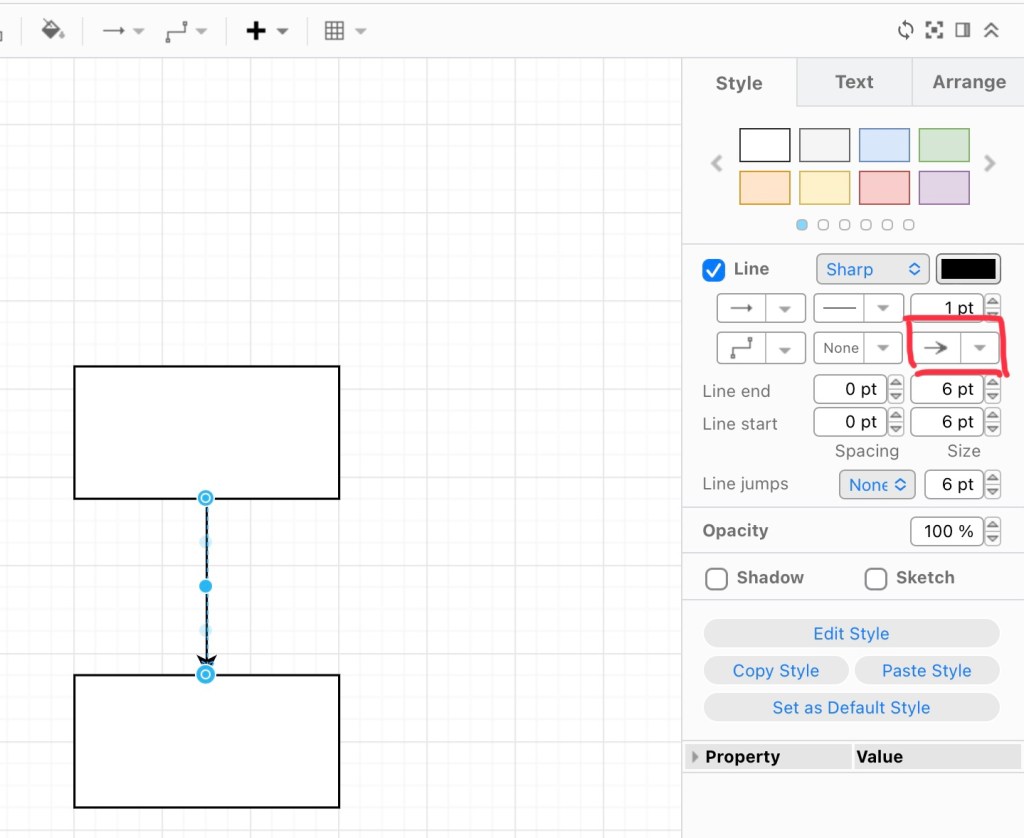
Wait! I don’t want my line to have an arrow. Click on the line, and select the “endpoint” to choose a different endpoint. I prefer “none.”
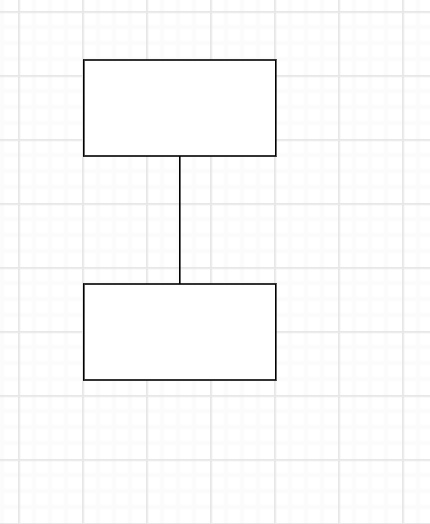
Perfect!
Much like LucidChart, the lines are probably the most difficult thing. You can adjust the type of line in the toolbar.
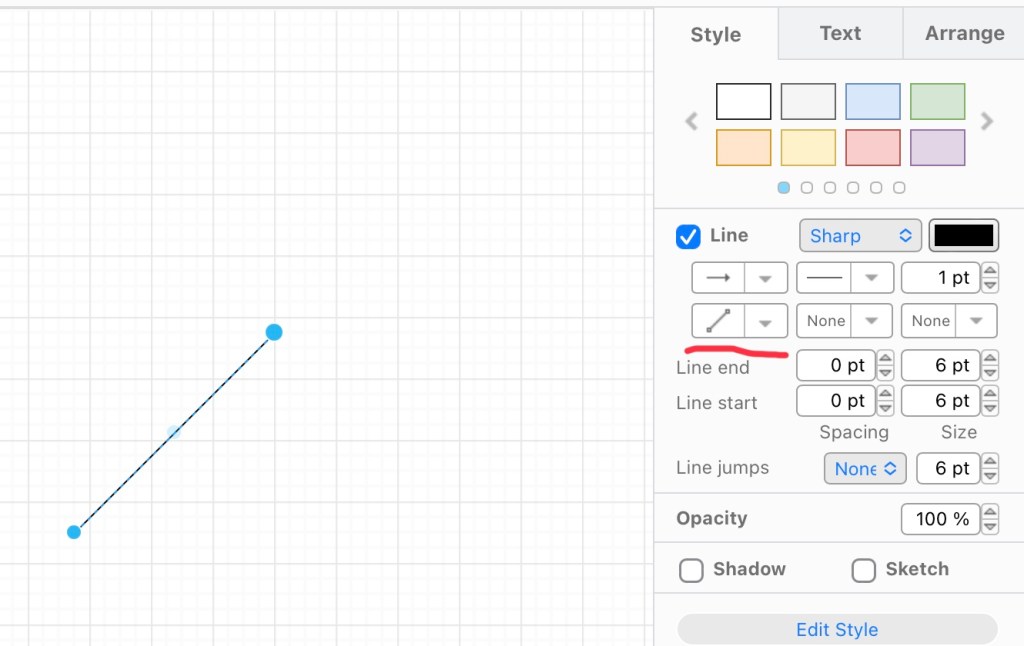
There are dots on the line. You can drag the dots at the end to move the end of the line or extend it:
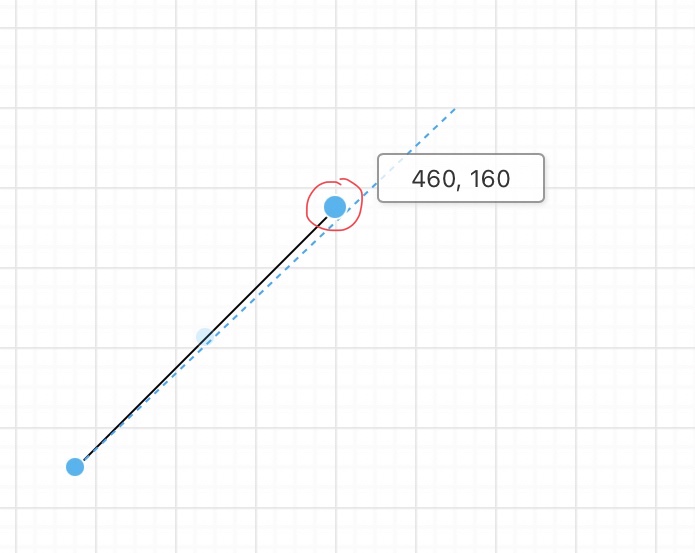

But if you drag the middle dot, you’ll change the shape of the line:

You can see how this created more dots to grab and change your line even more. But if you didn’t mean to do that, thank goodness for the undo button!

You can also drag the endpoints to connect it to a shape. I like how it shows you where on the shape you can connect it to:

When you change the line type and start working with the bendy lines, it can really get out of hand. You can still drag the endpoint around:

See how that changed what the line looks like:
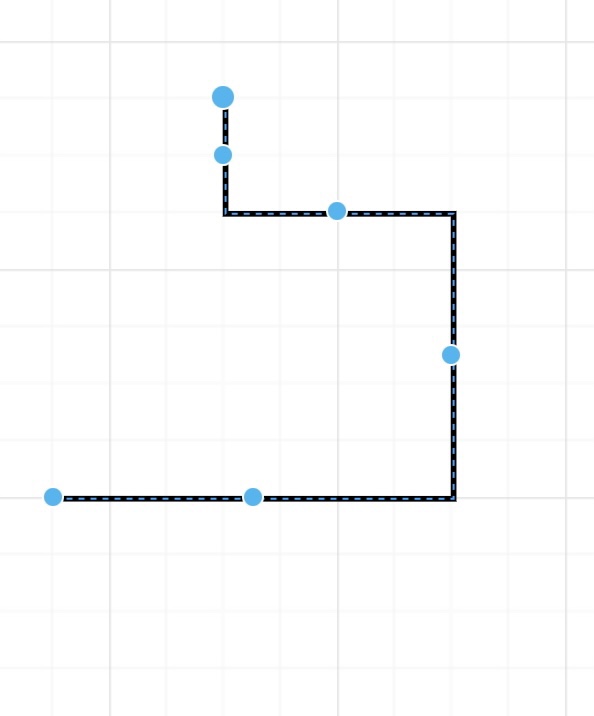
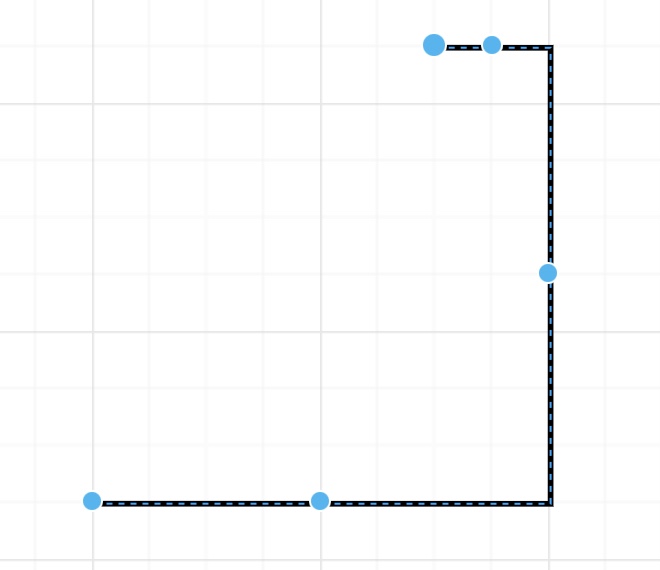
When you click on the middle dots, it won’t bend the line, it will move the whole line:
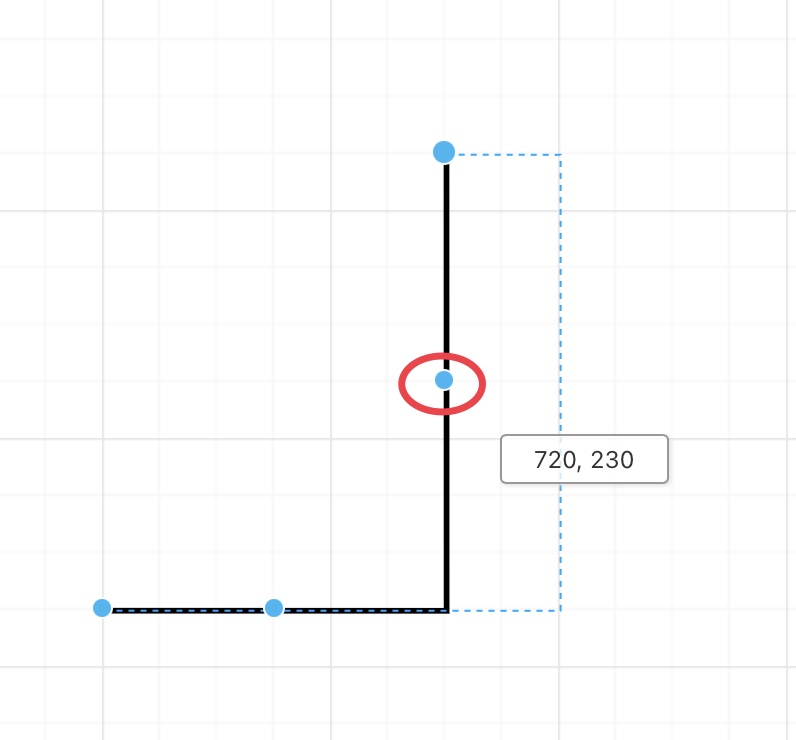
This created new middle dots, which all can now be pulled on to adjust your line the way you want it. It takes a lot of practice to get the lines where you want them, which is why I prefer using just the straight lines. But sometimes you need to use the bendy lines. Try spending some time playing with the lines before attaching them to shapes, to get a feel for them, and if your line gets really out of control, just delete it and make a fresh line.
I also like using the duplicate function. Just right click on any shape:

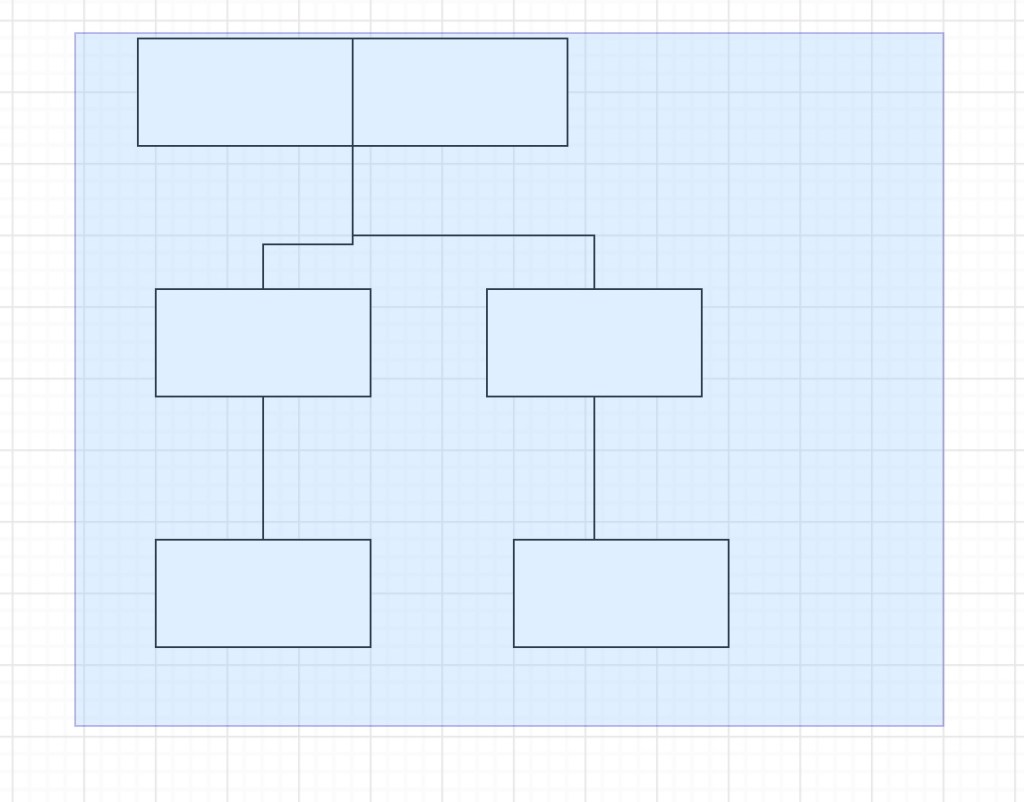
You can also select a lot of objects at once by dragging your mouse over them, either to move them or to duplicate them (right click after selecting):
I hope the little tutorial was helpful! While I have a slight preference for LucidChart in terms of ease of use, since Draw.io is free, it’s likely the charting program I will continue to use. Happy charting!
1) Jennifer Wiebe, “Why I Love Scapple,” Jennealogie (https://maltsoda.wordpress.com/2020/07/09/why-i-love-scapple/ : accessed 29 April 2022).
2) Jennifer Wiebe, “LucidChart,” Jennealogie (https://maltsoda.wordpress.com/2022/04/20/lucidchart/ : accessed 29 April 2022).
3) Draw.io (https://app.diagrams.net/ : accessed 29 April 2022).
4) Jennifer Wiebe, digital photo, Pick a Shape, April 2022, author’s files.
5) Jennifer Wiebe, digital photo, Toolbar, April 2022, author’s files.
6) Jennifer Wiebe, digital photo, Shape menu, April 2022, author’s files.
7) Jennifer Wiebe, digital photo, Shapes attached with line, April 2022, author’s files.
8) Jennifer Wiebe, digital photo, Fixing endpoint, April 2022, author’s files.
9) Jennifer Wiebe, digital photo, Line with no endpoint, April 2022, author’s files.
10) Jennifer Wiebe, digital photo, Type of line, April 2022, author’s files.
11) Jennifer Wiebe, digital photo, Drag the endpoint, April 2022, author’s files.
12) Jennifer Wiebe, digital photo, Longer line, April 2022, author’s files.
13) Jennifer Wiebe, digital photo, Drag the middle point, April 2022, author’s files.
14) Jennifer Wiebe, digital photo, Bent line, April 2022, author’s files.
15) Jennifer Wiebe, digital photo, Attaching line to a shape, April 2022, author’s files.
16) Jennifer Wiebe, digital photo, Dragging endpoint on bendy line, April 2022, author’s files.
17) Jennifer Wiebe, digital photo, New bendy line, April 2022, author’s files.
18) Jennifer Wiebe, digital photo, Dragging the middle dot, April 2022, author’s files.
19) Jennifer Wiebe, digital photo, New line, April 2022, author’s files.
20) Jennifer Wiebe, digital photo, Duplicate, April 2022, author’s files.
21) Jennifer Wiebe, digital photo, Selecting multiple objects, April 2022, author’s files.


 Jennealogie
Leave a reply to Welcome to the Matrix – Jennealogie Cancel reply