
You might be here because you read my last post Please Upload Your DNA Results To Gedmatch and you want to learn more. Maybe you’re new to the genetic genealogy world, and you’ve uploaded your results to Gedmatch but you don’t know what to do next. Maybe you’ve fooled around with Gedmatch for awhile, but you don’t feel like you really understand it. Whatever the reason you are here, welcome. I hope you find this post useful. (Updated March 2023)
First things first. The most important thing is your kit number. That is the number that you will compare to other people’s numbers. You will have to enter it pretty much everywhere on Gedmatch, so you should probably mark it down somewhere where you can easily access it. Beats having to go back and forth from the page where to need to enter it in to the main page.
Once upon a time, the letter in the kit number was significant, but now they are randomly supplied. The letter represents what the original testing company was on older uploads, but now you can easily find that info elsewhere. If you also have an account with that testing company, you might be able to find the owner of that test there. They may have information on that site that isn’t on this one. A = Ancestry, T = FamilyTreeDNA, H=MyHeritage, M= MyHeritage 23&Me (thanks for the correction, reader!).
You can find your kit number under “Your DNA Resources.” You can click the pencil to edit the details of your kit such as the status, name, alias, and to change law enforcement access. The police symbol denotes whether you are opted in. If it has a big X, you are not opted in.

I will quickly explain opting in here, but if you want to know my thoughts on the matter I have written about it more here.
Opt in: Your kit is compared to other kits in the database, including kits submitted by law enforcement.
Opt Out: Your kit will be compared to other kits in the database, including kits of unidentified human remains (which may have been submitted by law enforcement) but not kits submitted by law enforcement to identify perpetrators of violent crimes.
Private: Your kit is not available for matching to other kits in the database.
Research: Your kit is available to be compared to other kits, but you won’t show up in their match list.
Next, let’s look at other things you can do on this site. To keep this tutorial simple, we’re going to focus on the free tools you can use to analyze your data, specifically tools to analyze your DNA raw data, and more specifically, the tools that are the most useful to a beginner.
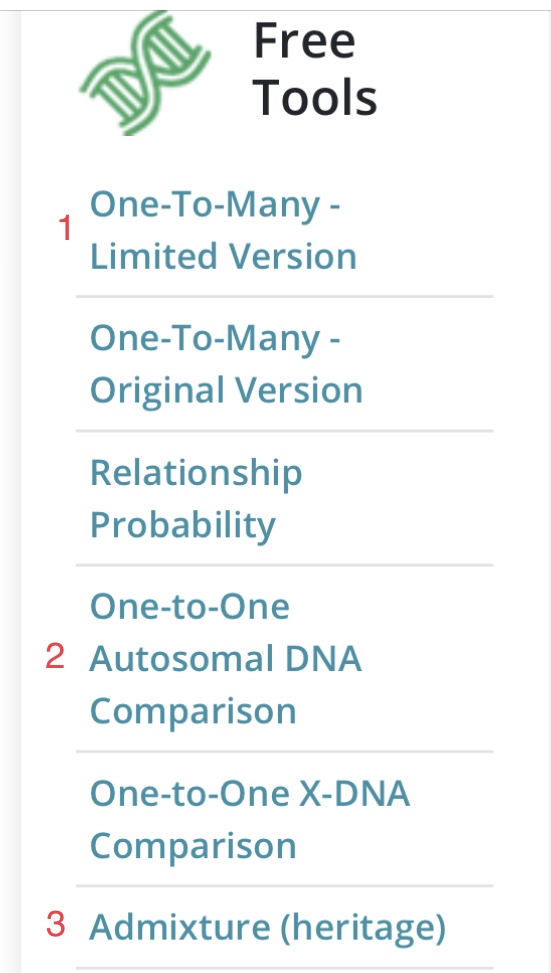
1) ‘One-to-many’ matches
This will allow you to see all the matches you have on Gedmatch. These are people who share DNA with you.
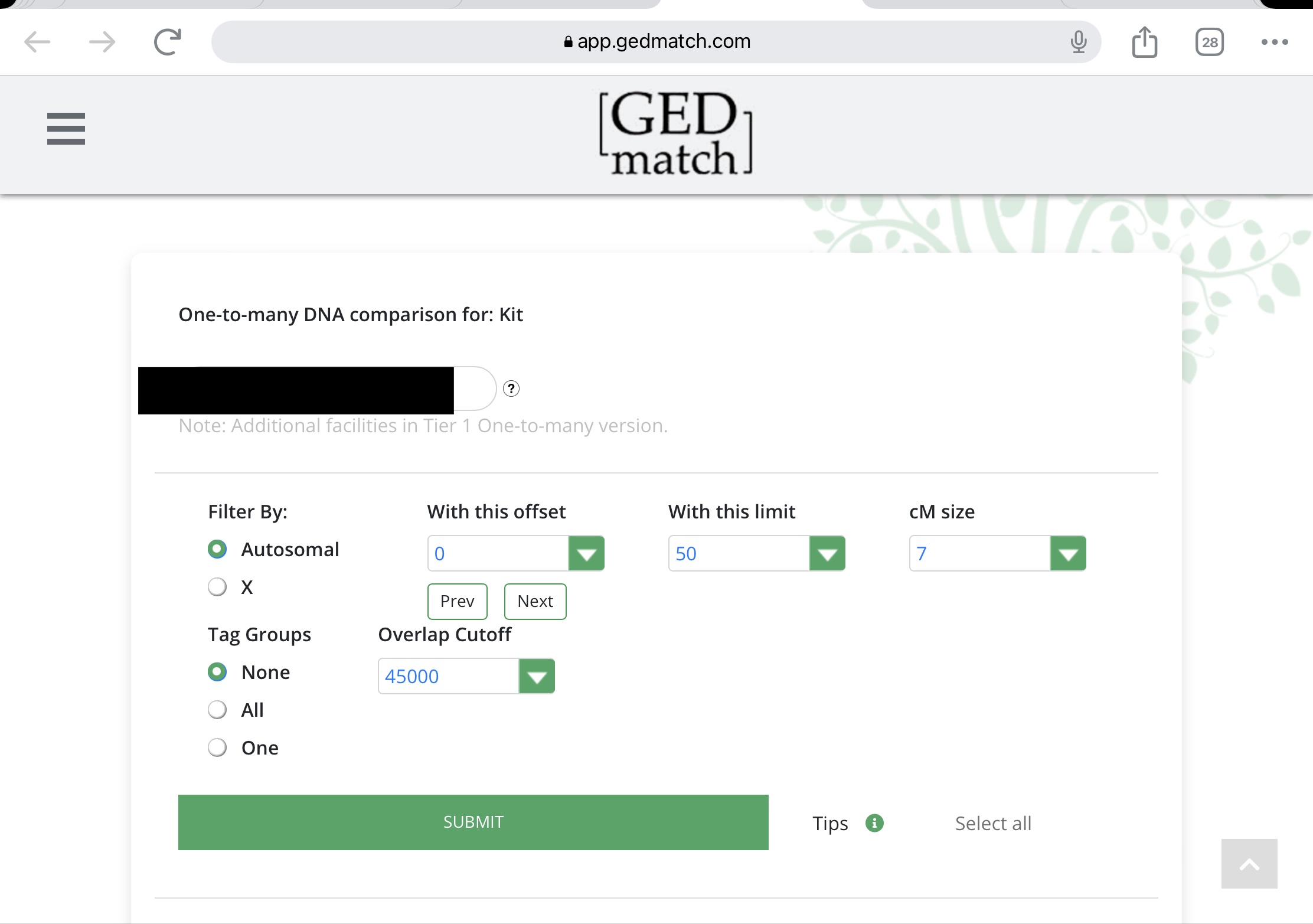
Enter a kit number or select from a drop down list, then click display results. Don’t change any of the settings. Next, you’ll be taken to a page with all your matches. Let’s go across the top of the table and learn what each column is for.

The first column is the select, which doesn’t do anything unless you have a subscription to Gedmatch Tier 1 tools. Then the match number and kit number, followed by the name. Note that aliases (nicknames) are prefaced with an asterisk *. Names can be helpful but of course married names obscure maiden ones. Aliases are not as useful, but sometimes if someone is particularly proud of their heritage it might give you a hint. If you click on a person’s kit number it will open up their ‘one-to-many’ match list. The email is how you can contact a person. Here is my post about crafting an email to DNA matches.
A link will show up in the GED/WikiTree column if your match has uploaded a family tree. You can have a look and see if it gives you any indication of how the two of you might be related (I’ll talk about how you can upload your family tree in a future post).
Age (days) tells you how long the kit has been on Gedmatch. It will be highlighted in green if it’s a new match. Type, is regarding what kind of chip was used in testing, not really relevant for our purposes. Sex is male, female or unknown. Next is Haplogroup, a bit advanced for our purposes.
Autosomal has three columns. Total cM and largest cM require that you know that a cM is a unit of measurement for DNA, short for centimorgans. The total is the total of all the segments you share in common. The largest is the size of the biggest segment you have in common. Generally speaking, the higher the total, the closer you are related to someone. If you enter the total amount of cMs here, it will give you ideas of what relationships to this person are possible. It’s a fuzzy science, though, because the amount of shared cMs people in a given relationship can have can vary, and varies more as the genetic distance increases. For example, between a great-aunt and great-niece, the two people can have anywhere from 251-2108 cMs in common. If you click on the link in the largest segment column, it will open up ‘one-to-one’ comparison, which we will talk about in a second. Gedmatch also gives you an estimate of how many generations you are from this person in the Gen column.
X-DNA is an advanced topic for another day. Source tells you where the person originally tested. Overlap is not something to worry about unless it’s pink, but usually it won’t be pink until you get to your smaller matches.
2) ‘One-to-one’ compare
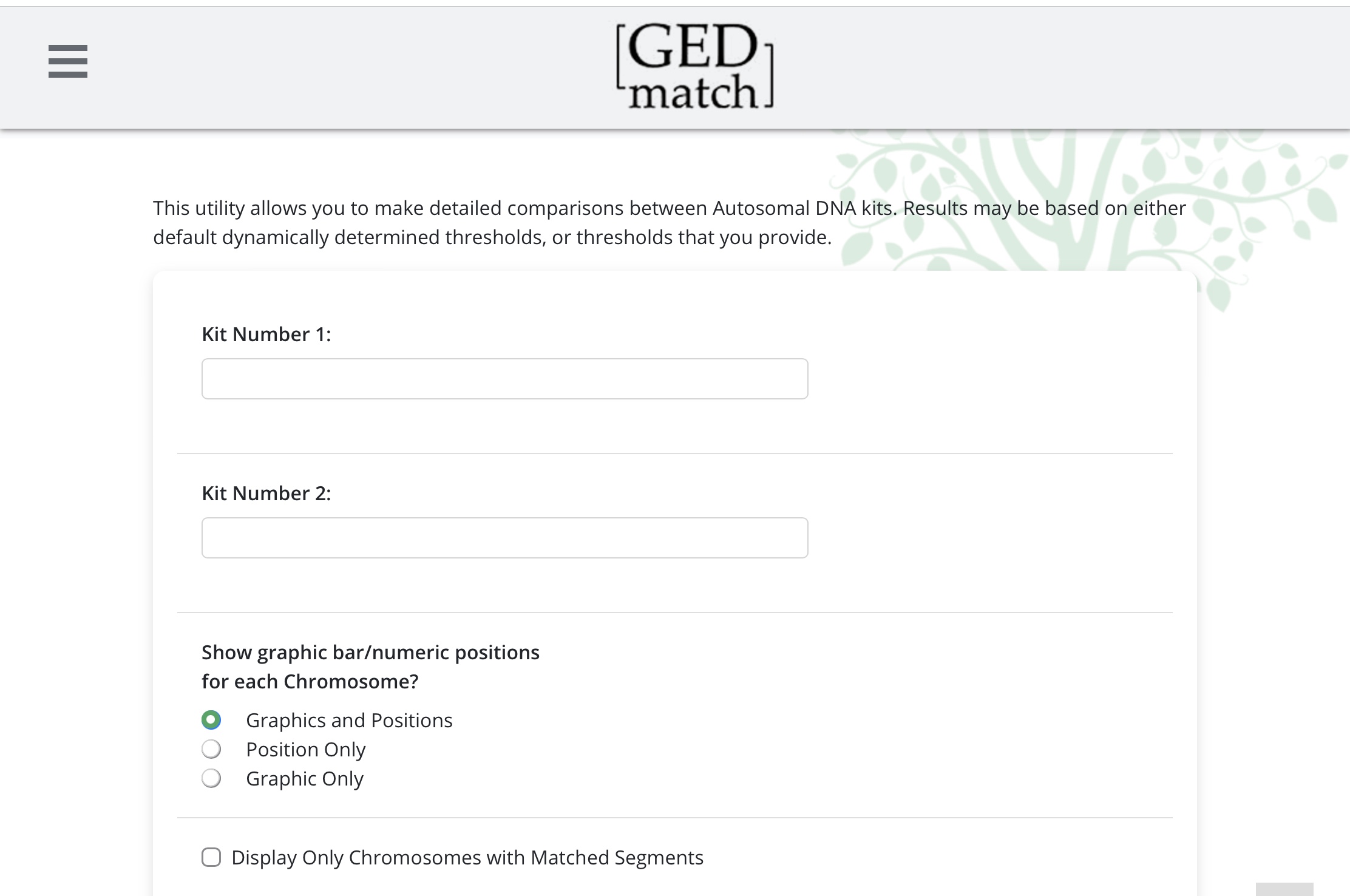
It is always a good idea to run a ‘One-to-one’ compare with a match before you email them. You can click on ‘One-to-one’ compare from the main page. The ‘One-to-one’ compare page has a spot for two kit numbers to go. If you got to the ‘one-to-one’ compare from clicking on the link in the “largest segment” column from your ‘one-to-many’ page, the kit numbers will already be filled in. Let’s keep the settings the same for now.
Once you hit submit, you get to a page that looks like this:
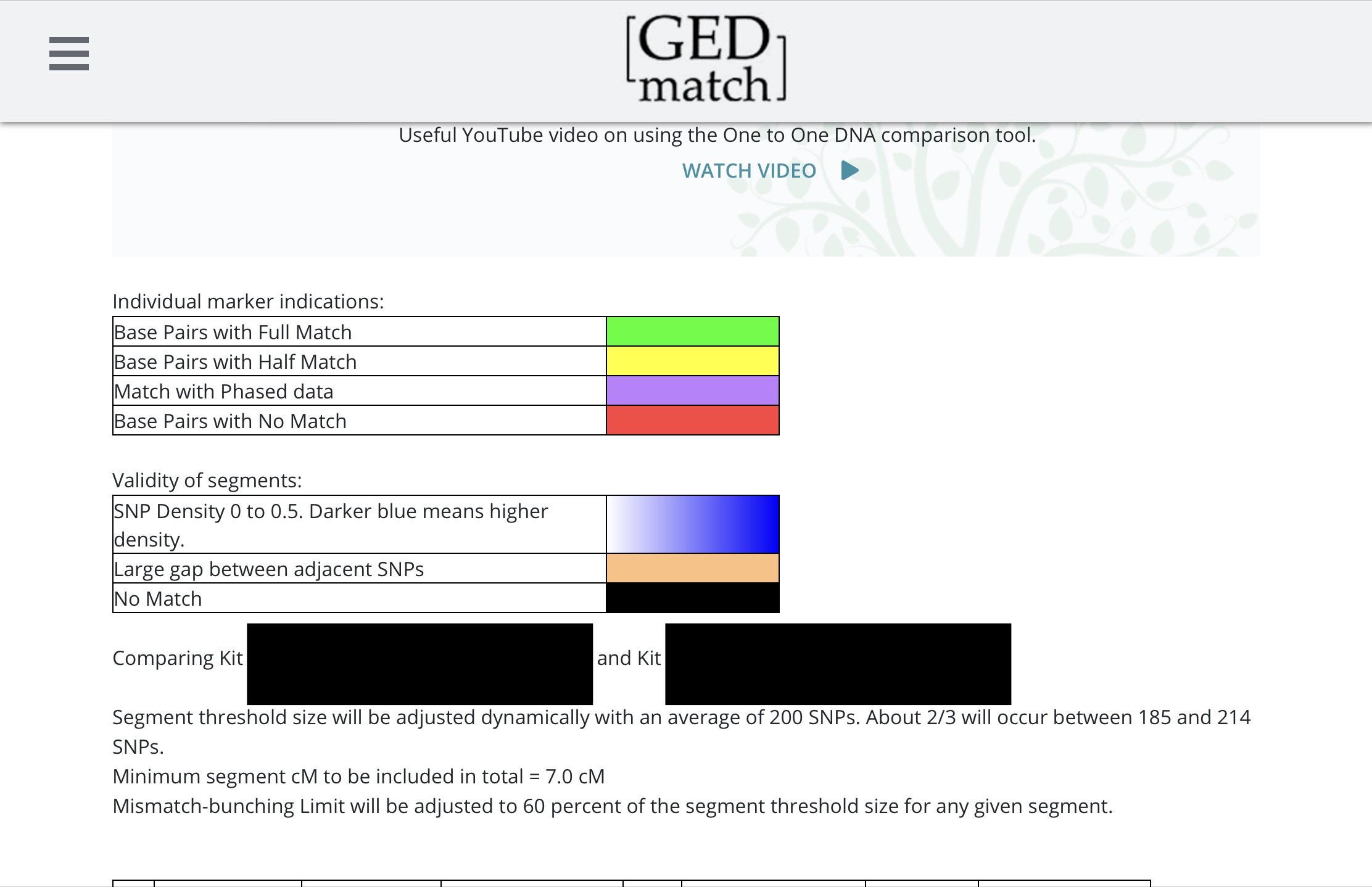
The top part talks about half matches and full matches. Since we have two of each chromosome, one from mom and one from dad, we can share DNA with someone on one chromosome or on both. If we share on both, that is colour-coded green. This most commonly happens with siblings. If we only share on one, it is colour-coded yellow.
Our DNA is made up of 4 letters. About 600,000 of these letters are compared between two people to see if they match. These spots are called SNPs. The more SNPs you have, the more valid the segments are. Think of it like a review for a product online. We would prefer to see a rating of 4/5 with 1000s of reviews over a 5/5 rating with only 1 review. So we would like to see some blue. In the chart below, you can see a tiny yellow and blue segment at the end of Chromosome 2 that is shared. This person is a half-match, and the SNPs are valid.
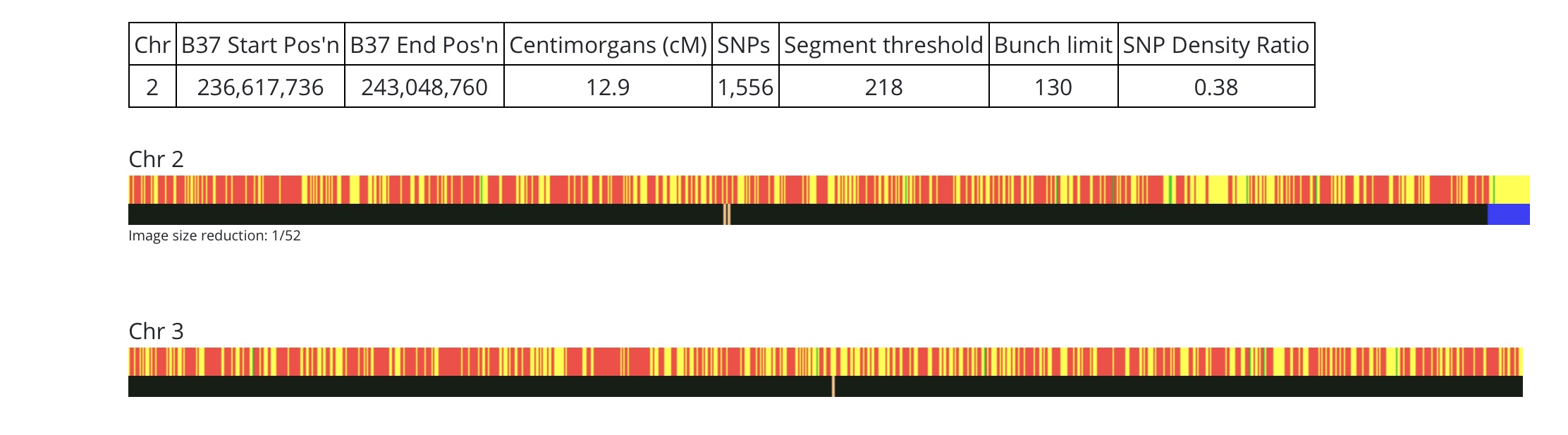
Let’s go through the table. First the chromosome number. Then, the start and end position of the shared segment (think of it like the segment’s address). The size of the segment is measured in centimorgans, followed by the number of SNPs that were used to make the comparison. Chromosome 3 does not have a table because there are no matching segments. At the very bottom of the page, you get a nice summary.
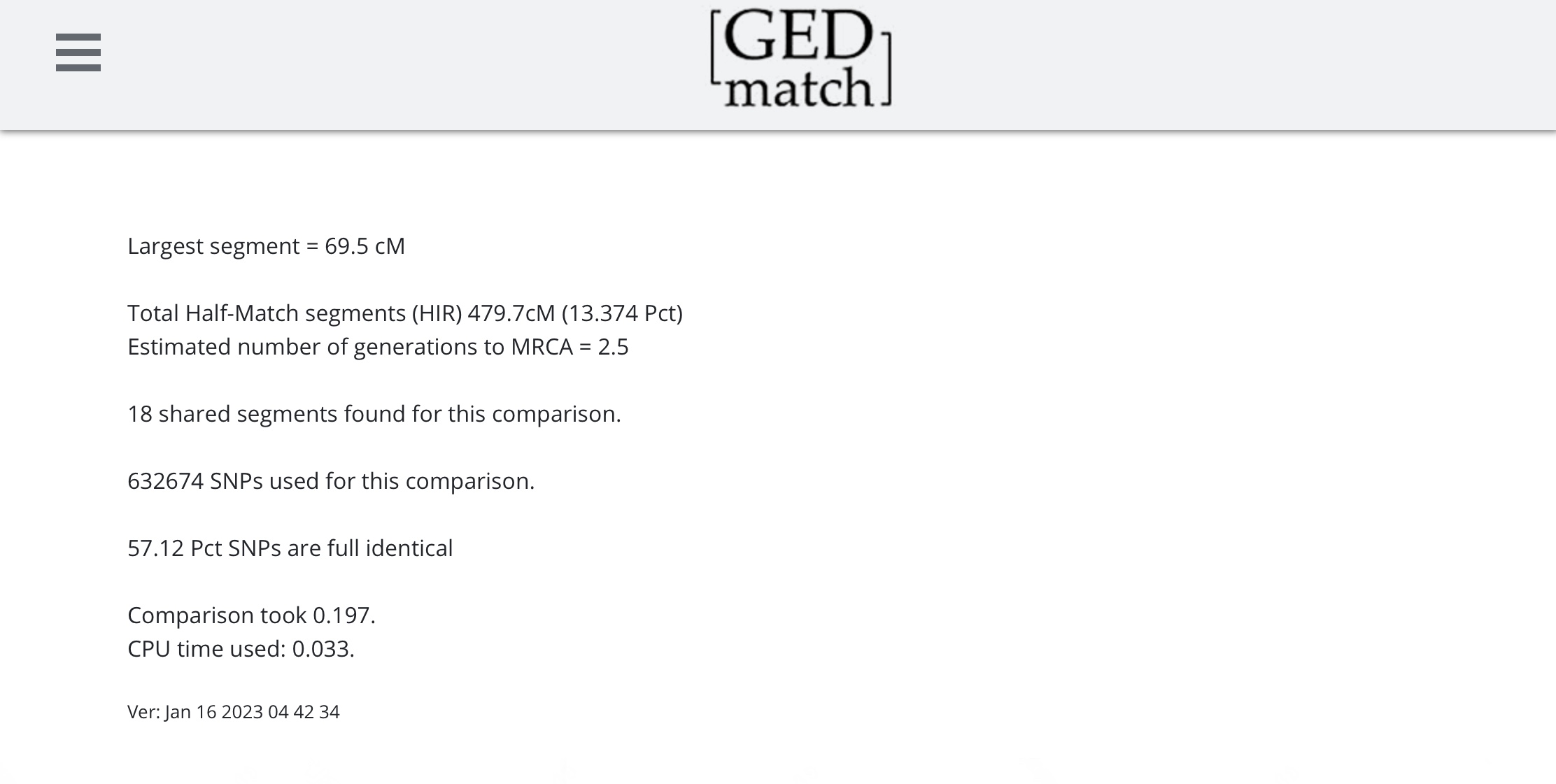
The largest shared segment is 69.5cM. The total of the segments (all of which are half-matches) is 479.7cM. The estimated number of generations to MRCA is 2.5. MRCA stands for Most Recent Common Ancestor. For example, siblings have many ancestors in common: their parents, grandparents, great-grandparents, etc. The most recent common ancestor is their parents. For cousins, it’s their grandparents. Gedmatch is estimating that if I want to find the common ancestor between this match and myself, I should look be looking 2.5 generations back.
Here’s what it looks like when you’re not related:
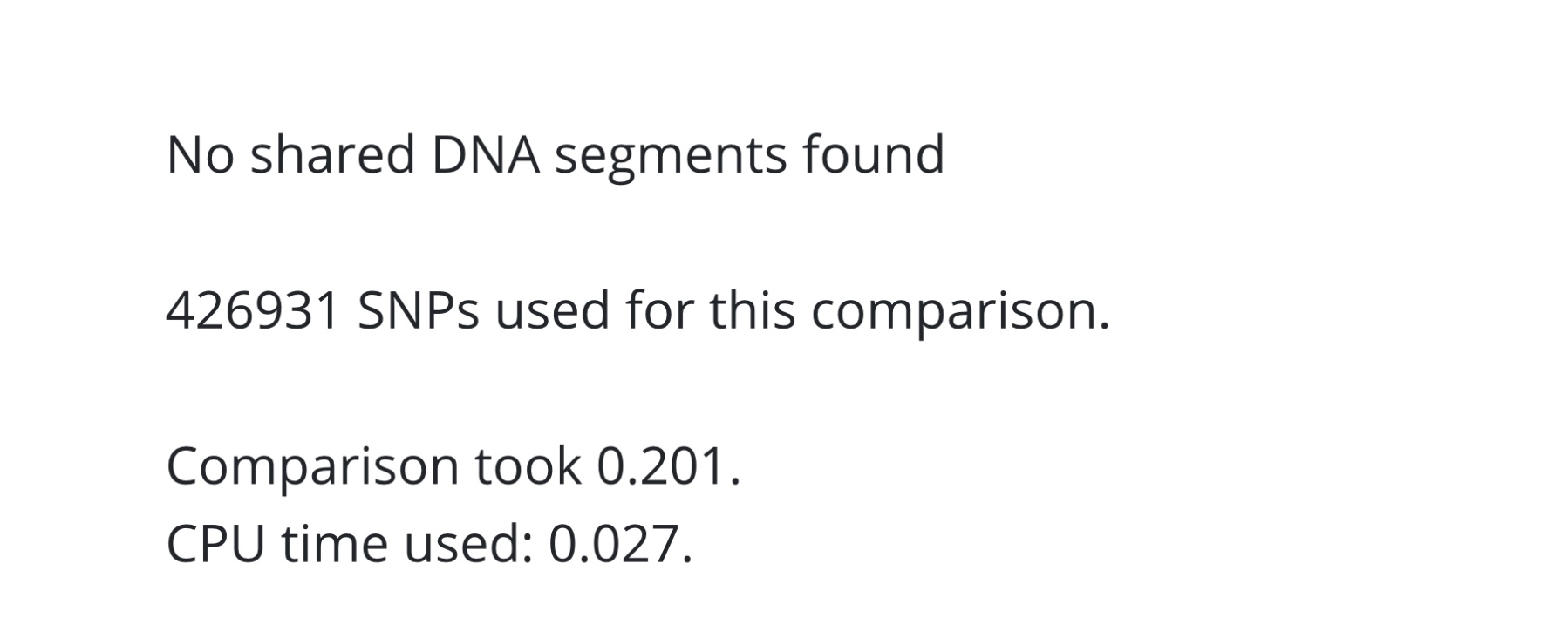
Please note that because testing companies differ in how they do things, one company might mark you and a match as related and another company might mark you and that same match as unrelated.
3) Admixture (heritage)
One thing that has not changed is the admixture or ethnicity estimates. Every testing company offers its own version of ethnicity estimates; Gedmatch has several. I’m not going to say anything here but provide a link to a site that explains it far better than I ever can.
Please fool around on the site and get used to it. Experiment with different settings. Or not. See if they can get your eye colour correct (I wish Gedmatch would bring this tool back!) Check if your parents are related. Then go read Gedmatch Basics, Part 2.

 Jennealogie
Leave a reply to Please Upload Your DNA Results to Gedmatch.com | Jennealogie Cancel reply