
Way back what feels like 3 centuries ago, I watched a webinar by Blaine Bettinger called LucidChart and Other Tools for Genetic Genealogy. He talked about a few different third party tools, some of which we might not think of when we think of genealogy, such as a charting program called LucidChart. Sometimes we need to make charts in genealogy, in order to see things more clearly, or to make family trees for blog posts and presentations. I finally got around to checking out LucidChart, since they offer a limited use of the program for free. You can use it on a variety of platforms and that appealed to me because I use my iPad a lot. However, it is not a very intuitive program and I consider myself to be pretty technologically adept. I was finally able to create a few text boxes but the ability to connect them with a simple line was beyond me. No matter whether it was on the iPad or PC, I could not get the lines to do what they were supposed to, nor could I move them where I wanted them or get them to be the correct length without dragging them out in silly ways.
Other genealogists I know have successfully used a similar program called Scapple. It is available on Mac and PC and also offers limited use of the program for free. I found this program to be incredibly intuitive and easy to use and had a family tree comparing DNA matches set up very quickly. Here’s a little tutorial of the very basics you will need to set up a family tree.
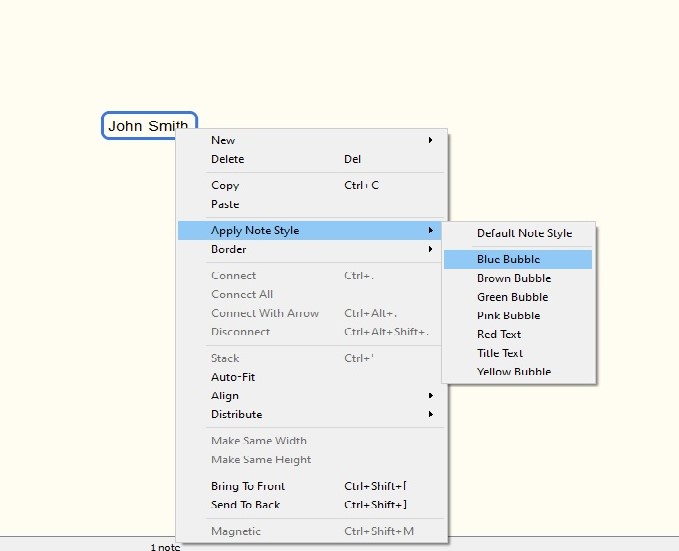
Step 1) Double click anywhere to create a “note” (basically a text box), which you can then edit. I started with John Smith. If you right click on the note “John Smith”, you will see and option to “Apply Note Style.” I made him in a blue bubble.
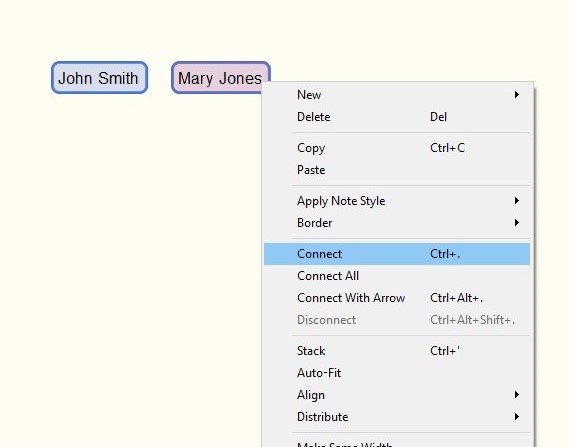
Step 2) I made John Smith’s wife, Mary Jones following step 1, but I made her bubble pink. Now to connect John and Mary. If you hold CTRL and click on each note, then right click, you’ll see “connect.”
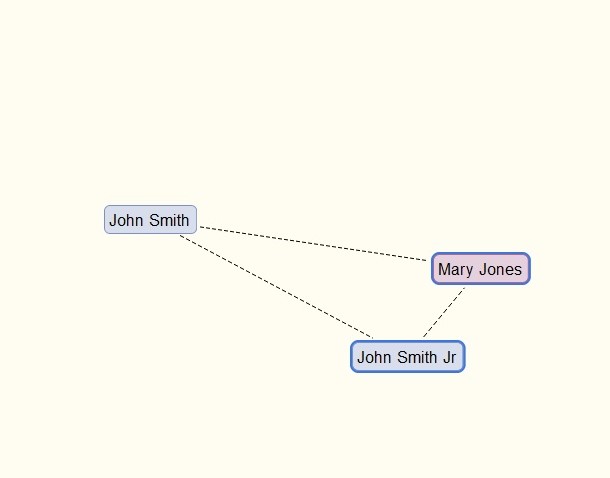
Step 3) Back to step 1, this time creating their son, John Smith Jr. Following Step 2 again, I connected him to his parents.

The cool thing about when they’re connected is that no matter where you move John Smith Jr, he stays connected.

If you CTRL click on multiple people, you can move them around together. For example, here I clicked on John Smith Jr and Mary Jones and dragged them over.
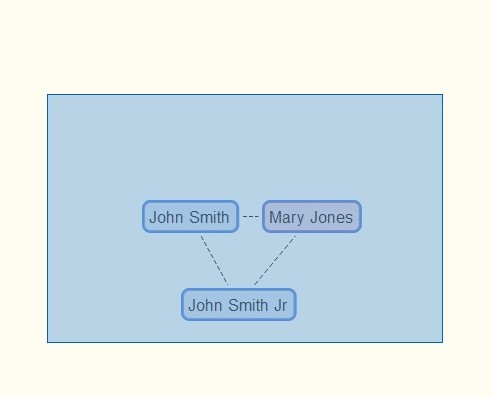
However, if there are a lot of people you want to move, you can also hold down your left mouse button and highlight everyone you want to move and then drag them over to wherever you want
A free trial of Scapple last 30 days of use (so if you don’t use it everyday, you can extend the 30 days over a period of time). I don’t know that I’d use Scapple all that much, but for Windows the price of the program is 24$ which I consider reasonable. When I run out of free trial, I will certainly consider buying a license.
UPDATE:
When you start to add multiple children to a family, it can get kind of messy:
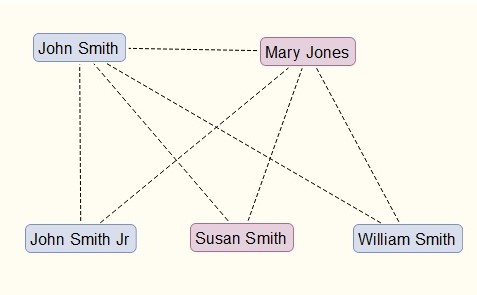
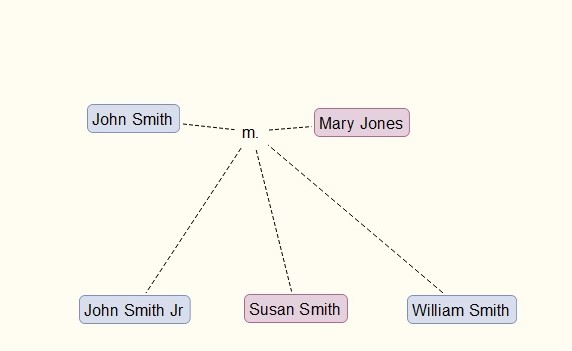
Since you can’t make connections between the lines, it was suggested in the Scapple forum to make a note in between two connected notes (you don’t even have to disconnect them, you can just click on the line connecting two notes and it will make a new note in between them). Then you can connect all the children to that note. For example, here I connected John Smith and Mary Jones to a note “m.” with no colour, and then connected all of their children to that note.


 Jennealogie
Leave a comment