
This post is not strictly about genealogy, but will definitely be helpful for those following genealogy groups on Facebook. My personal favourites are Genetic Genealogy Tips and Tricks and The Genealogy Squad, but I also follow a number of groups for the geographical and cultural areas of my genealogical research. There are a lot of Facebook groups for genealogy out there, so check out the Genealogy on Facebook List to find one that will be useful for you!
First, a few tips about posting
- Keep it positive! There’s no use complaining about something no one in the group has the power to change. If you want to post “X is terrible” see if you can change it to “How can I do Y with X?” (if you can’t reframe it as a question, consider not posting)
- Keep it on topic! If you’re posting in a genetic genealogy group, don’t post about traditional genealogy, and vice versa. Read the group rules to see what kinds of posts are allowed (recently all posts about the use of genealogy in law enforcement have been banned in the genetic genealogy group)
- Keep it specific! These groups host people from around the world. Canada, the US and Australia have naturalization records, so make sure to specify the country when you are looking for answers. Even within a particular country, specify city, county/township and state/province (don’t use abbreviations) so people won’t have to play twenty questions to see if they can help
Second, let’s look at notifications. You will get notifications on a post that you comment on or that mentions you. Often, you will see a post that you are interested in. You want to see what other people will answer, but have nothing to add, so you won’t get notified if it’s updated. Many people will comment “following” in order to get access to the notifications, but here’s an easier way:
Click on the three dots in the top right hand corner of the post (In the browser it looks like a V) and click on “more”, then click on “turn on notifications for this post.”

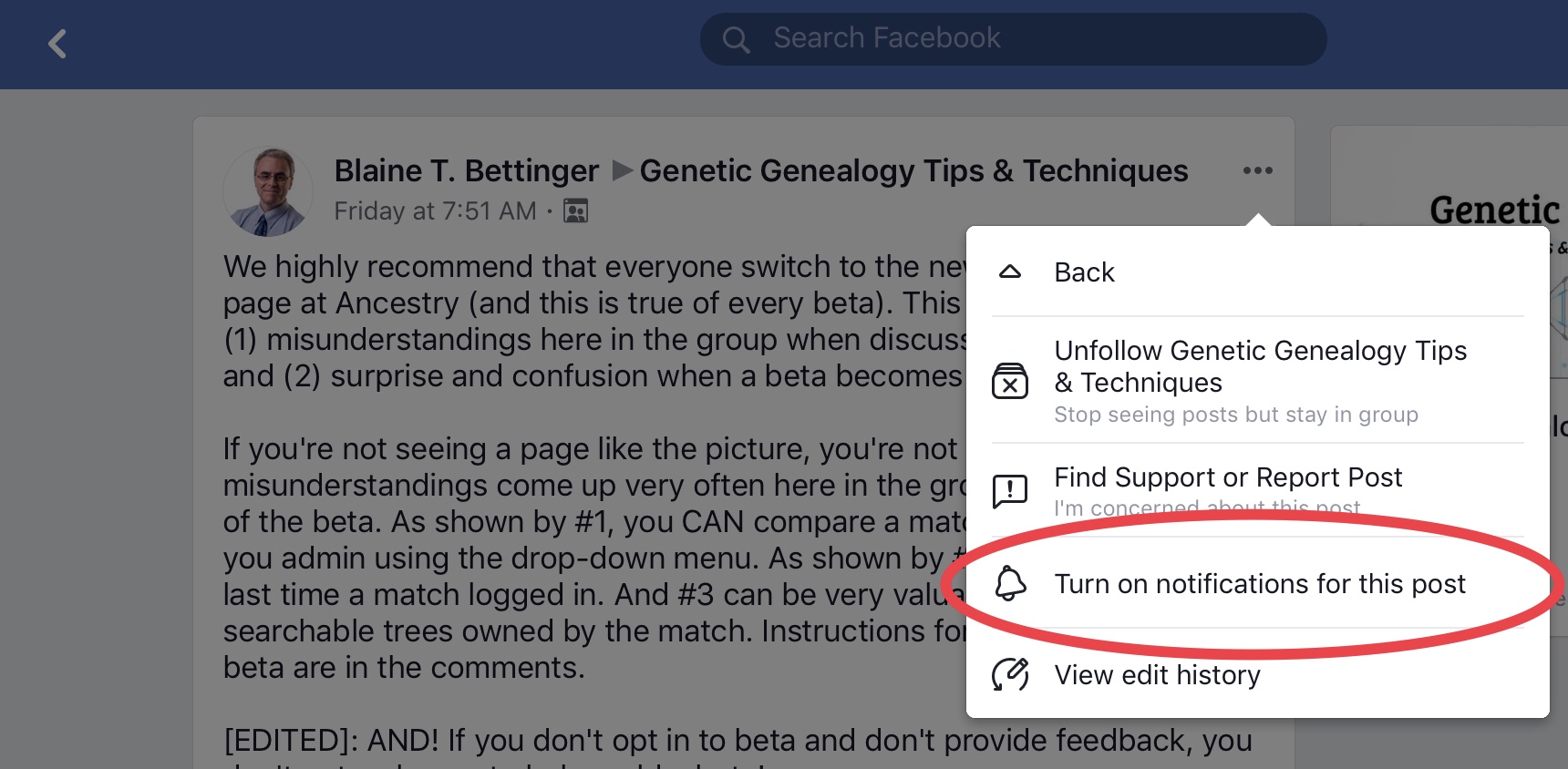
Hint: if there’s a post you no longer want to receive notifications for, you can use this method to turn off notifications!
Third, let’s talk about turning off comments. Sometimes you make a post and get your answer, but people are still commenting. I don’t know if people are unaware or just ignore the etiquette of reading all the comments before they comment, but it happens. You could edit your post so it now reads SOLVED, but there’s an easier way. Under those three dots/V you can also turn off the comments (note that admins have the ability to do that if they deem your post inappropriate for any reason -they will usually explain why before they turn the comments off).

Fourth, let’s talk about searching. Perhaps there was a post you saw that you want to find again, or maybe you want to see if someone else has posted about something you want to know about. Either way, using the search function is really useful! Once you’re in the group, put the keyword in the search bar. If you get a lot of results, use the filters. For example, you can sort by person who posted or by date.
In the app, the search bar is at the top, and the filters appear underneath once you do a search:

In the browser, the search bar is on the left side, and the filters appear underneath once you do a search:

Finally, you may want to report a post to the admins. Sometimes a post starts off well and then things start getting contentious in the comments section. No need to intervene, that’s what admins are for (and in the two groups I follow, they do a spectacular job of maintaining the peace!). The three dots/V in the top right hand corner will allow you do that provided you are viewing the post from in the group and not just looking at the post from your own newsfeed.

I hope this has been useful for avid Facebook users and newbies alike! Anything to add? Let me know in the comments!
Edited! I just found out you can SAVE posts and links. There’s even a way to group them, so if you come across a post you want to reference later or it has a link you want to read later, you can do so!
To save a post click on the three dots/v and click “Save post”

Then you will have an option to add it to a collection (create a collection if you haven’t already. Otherwise, click on the collection you want to add it to)

You can also save links from posts to your collection:

To find your collection, in your browser, down in the lower left, under explore, click on “Saved”

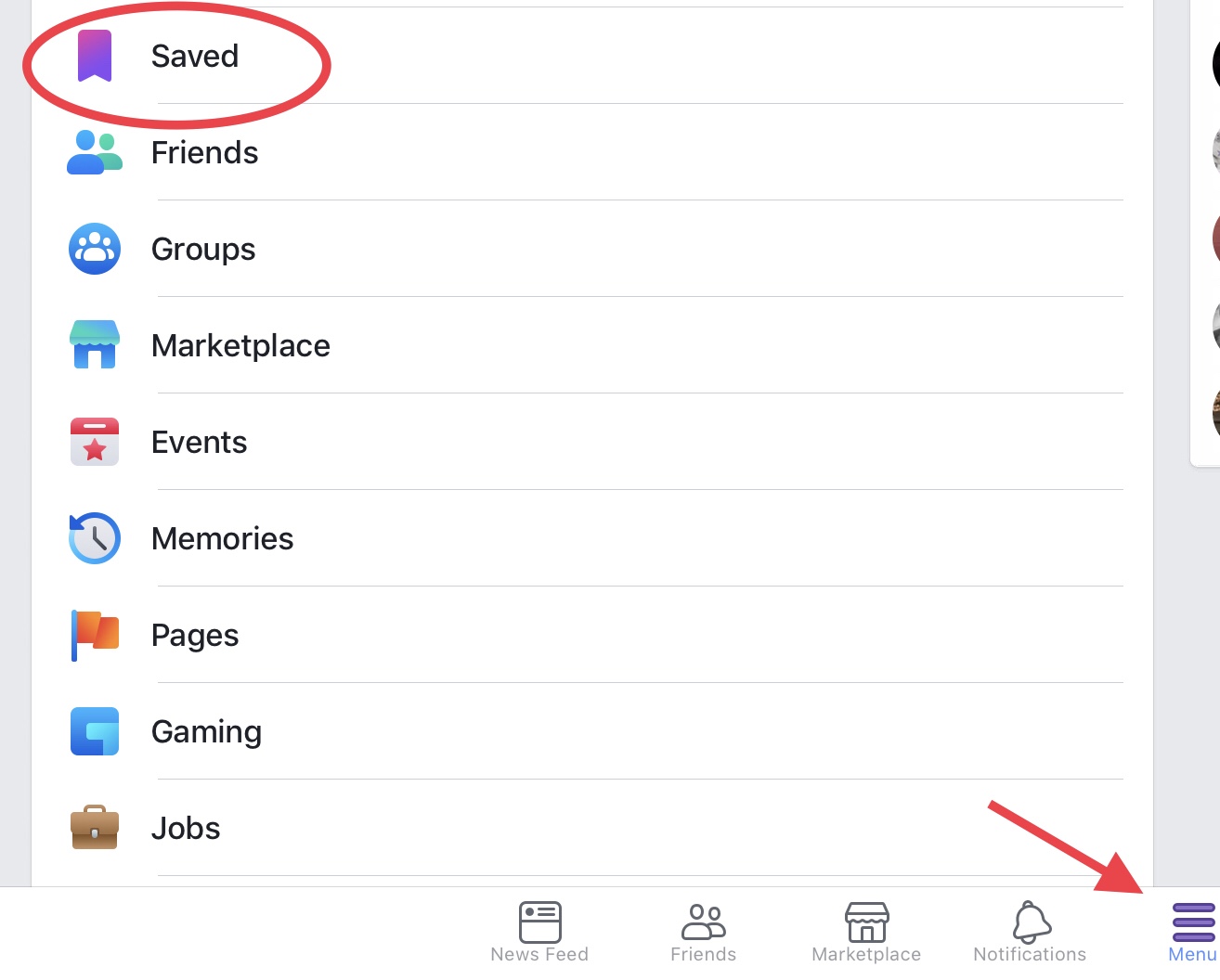
Or if you’re using the app, click on “Menu” and then “Saved”
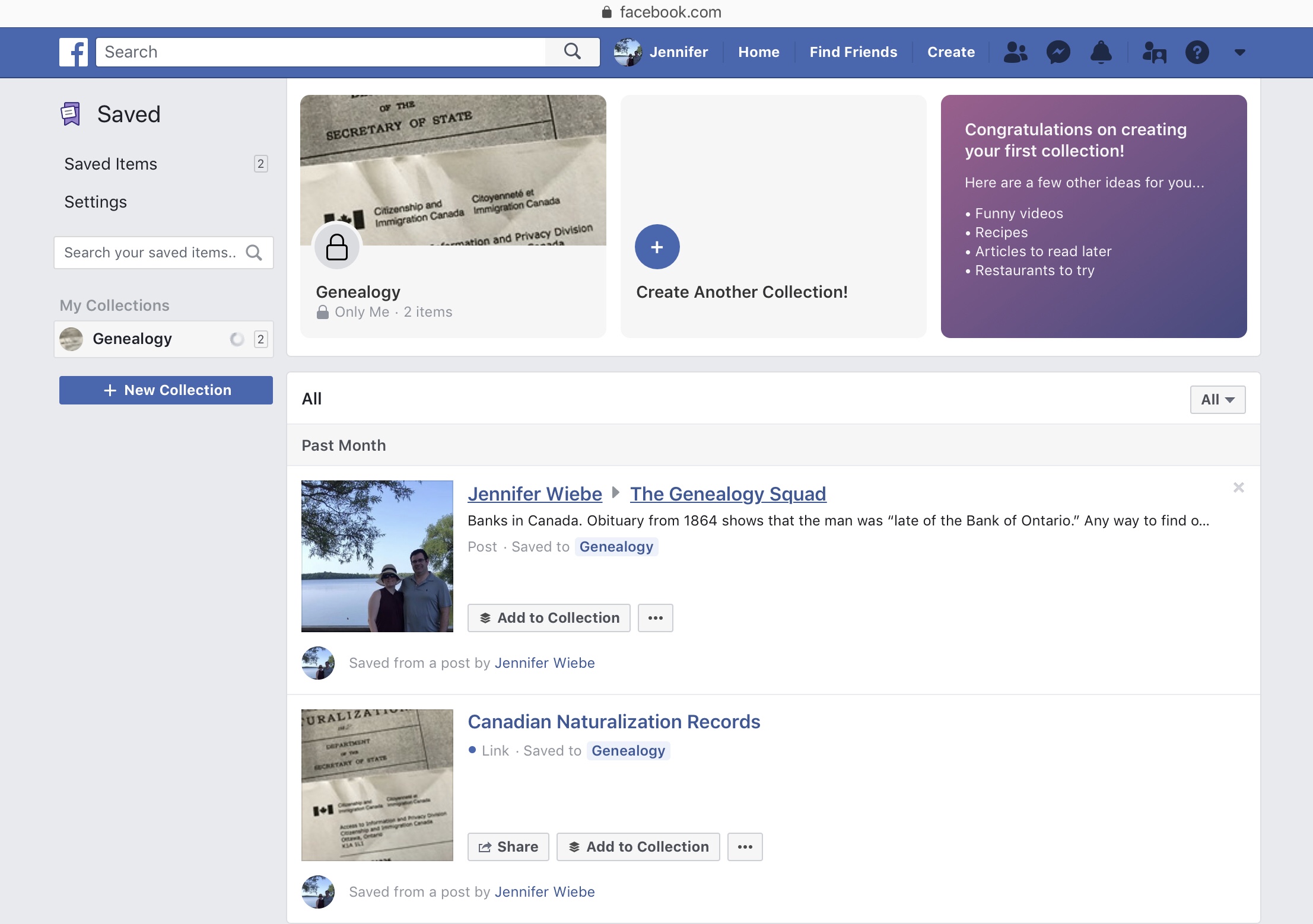
Voila! Now you’ll always be able to find that useful post.


 Jennealogie
Leave a comment